
 ·
3 minute read
·
3 minute read
The SPREAM admin has a new design, together with several improvements that make everyday work with content, events and pages easier.
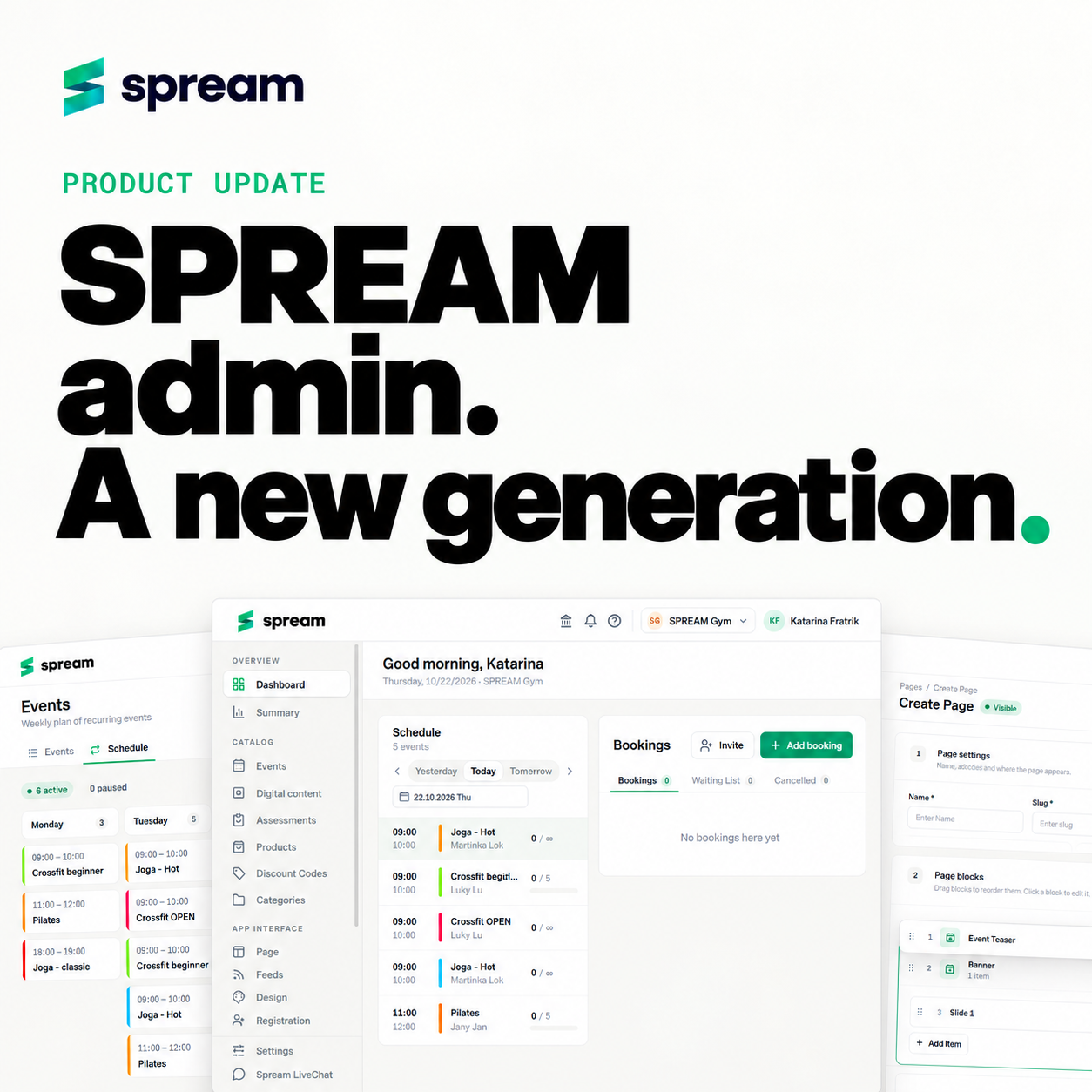
Many of the features you already know from the previous admin are still there. What has changed is how they are organized and how you work with them. We simplified several steps, made the main sections clearer and moved frequently used features to places where they are easier to find.
Let’s take a look at the main changes.
1. A clearer admin structure
One of the first changes you will notice is the new structure of the main menu.
Features are now divided into clear sections based on what they are used for.
In Overview, you will find the Dashboard and summary information.
Catalog includes the content you manage in SPREAM – events, digital content, assessments, products, discount codes and categories.
In App Interface, you will find tools related to how your content is organized and displayed to users, including pages, feeds, design and registration.
This new structure makes it easier to understand where each feature belongs and find what you need faster.
2. Schedule and bookings in a clearer view
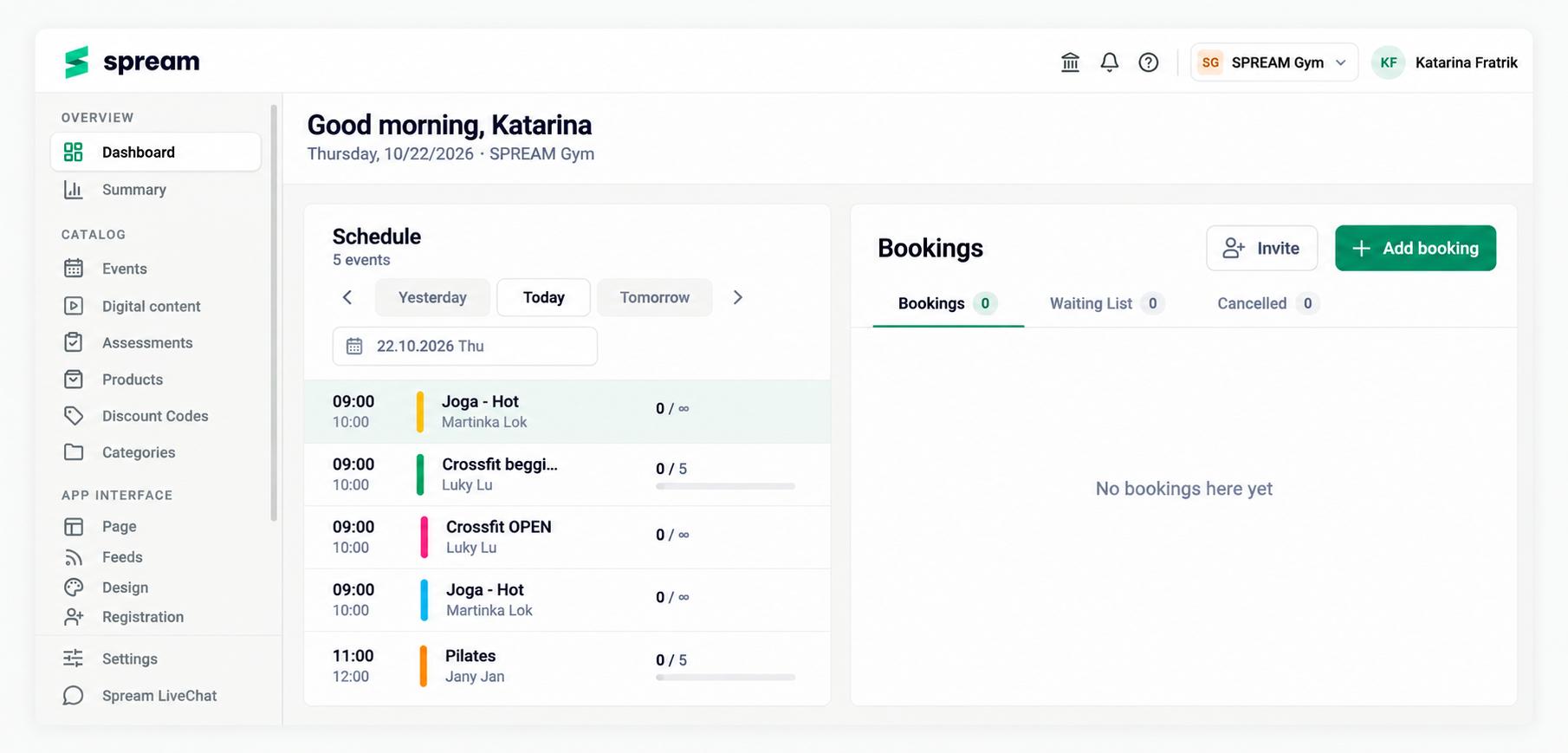
The Dashboard gives you a clear view of your current schedule together with bookings.
In one place, you can see the events planned for a selected day, including their time, activity name, trainer or instructor, and current capacity.
After selecting an event, you can also work with its bookings, waiting list and cancelled bookings.
These features were already available in the previous admin. The new layout simply makes it easier to see what is happening during the day and manage bookings from one place.
3. A clearer weekly plan for recurring events
The weekly view for recurring activities was already part of the SPREAM admin.
In the new version, we redesigned it to make the full week easier to understand at a glance.
Recurring events are clearly organized by day and time. This makes it easier to check which activities are planned during the week and how your overall schedule is organized.
So, this is not a new feature. It is a clearer and more practical way to work with your existing weekly schedule.
4. Easier page building with drag & drop
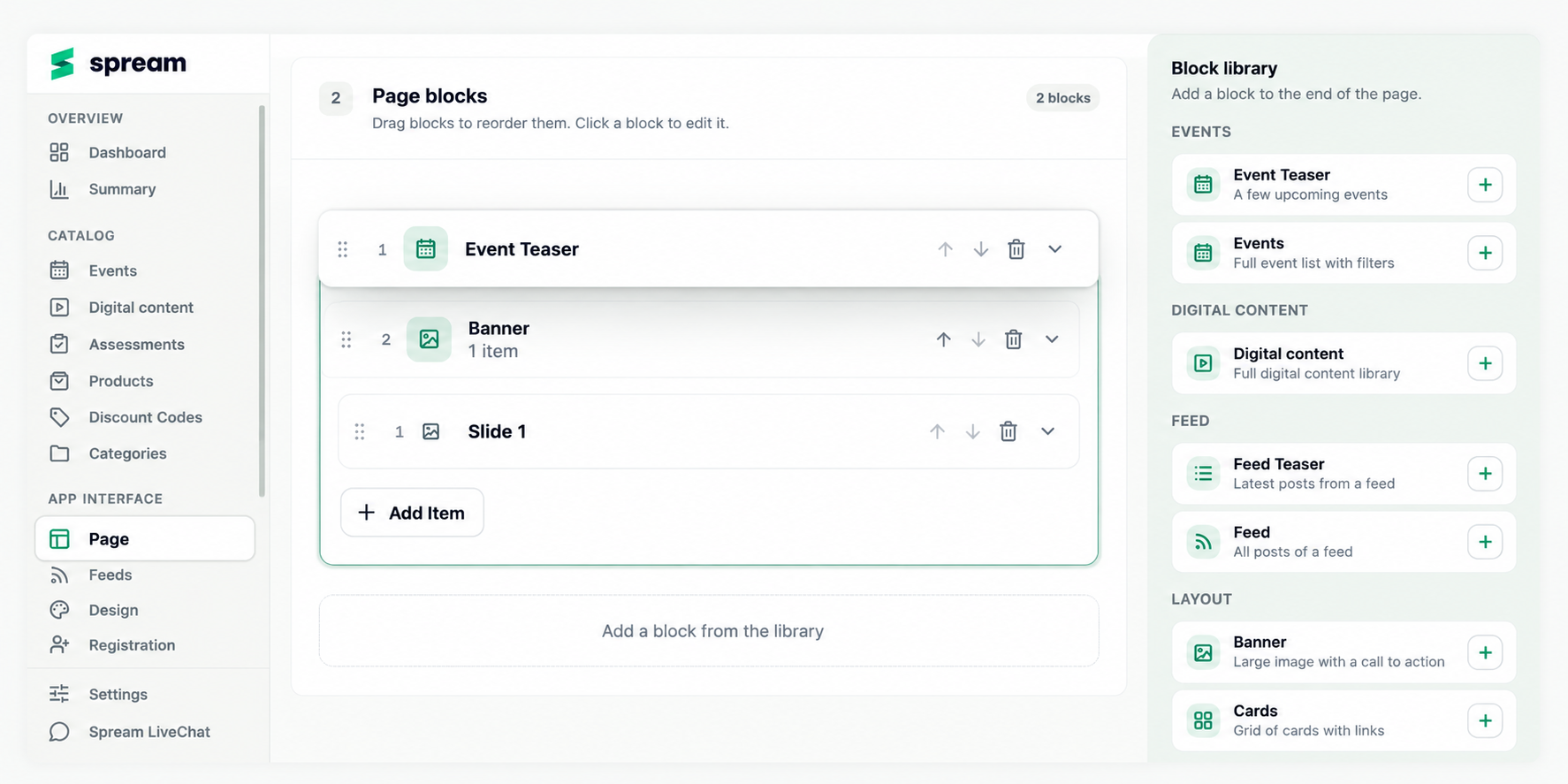
Pages are still built using individual content blocks. What has changed is how easily you can organize them.
In the previous admin, you could change the order of blocks using arrows. Each click moved a block one position up or down. With pages containing many blocks, this could mean a lot of unnecessary clicking.
In the new admin, you can simply use drag & drop.
Grab a block and move it directly to the position where you want it.
For example, if you want to move the last block to the top of the page, you no longer need to move it up one position at a time.
The block library is also available when building your page. You can add different types of blocks, including events, digital content, feeds, banners, cards, text and team members.
5. A new digital content library
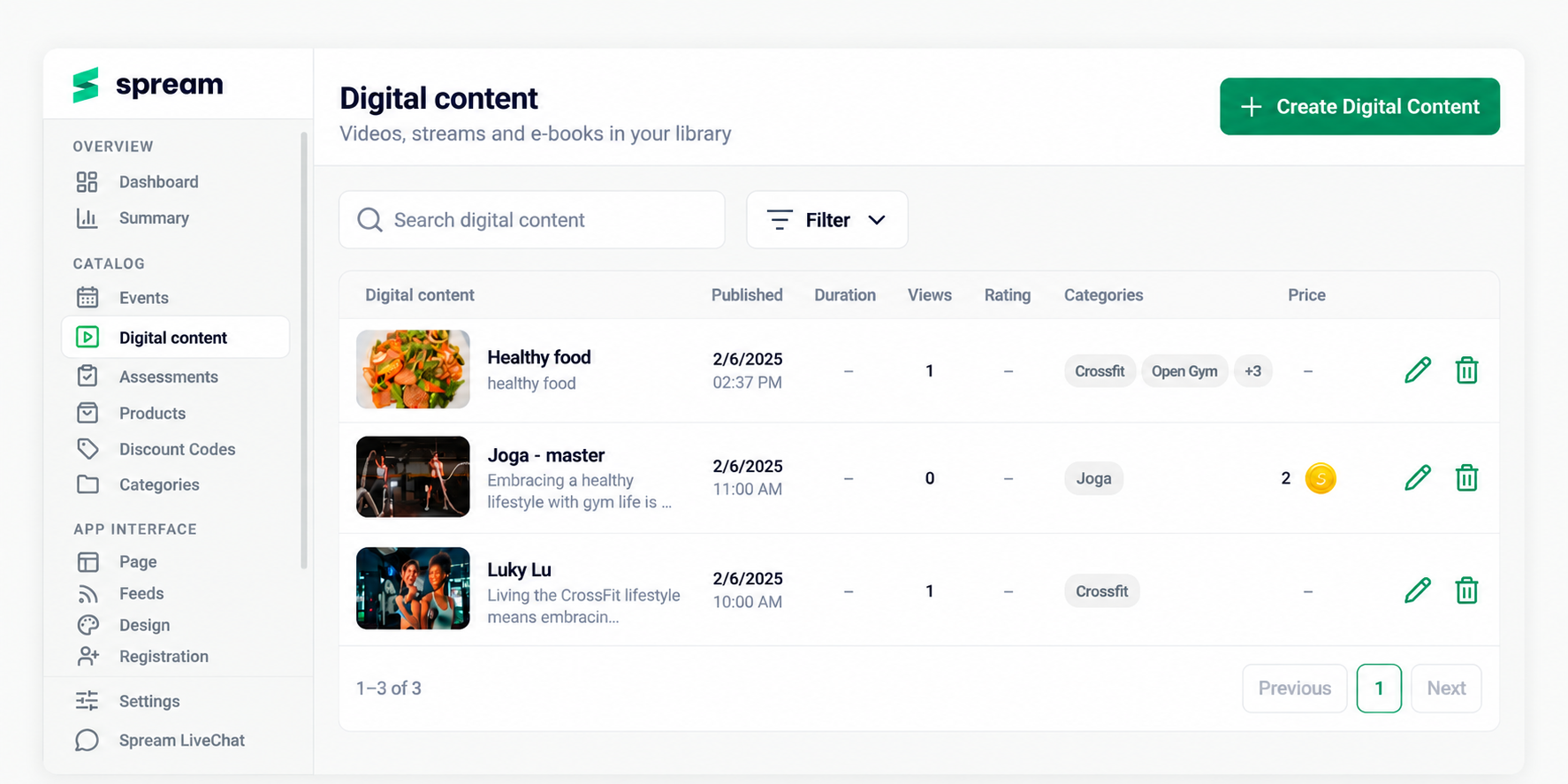
The Digital content section has a new and clearer layout.
Here you can find all your digital content in one place – videos, streams, e-books and other content you use in SPREAM.
The new library makes it easier to work with a larger amount of content. Search and filters help you quickly find exactly what you need.
For each item, you can also see useful information such as the publication date, number of views, rating, assigned categories and price.
We have also improved the process of adding new digital content.
The steps and settings are now organized in a clearer and more intuitive way, so it is easier to understand what information you need to add and where to find each setting.
This makes adding and managing videos, streams and e-books simpler, especially when you work with content regularly.
6. Categories are easier to access
Categories are not a new feature in the SPREAM admin. In the previous version, however, they were located in Settings.
In the new admin, Categories have their own place directly in the Catalog, making them easier to access while working with content.
The way they work remains simple.
First, you create a category name. Then you assign the category to the relevant content. Based on the selected category, the content can then be displayed in the right places.
Categories help you organize your content and control which content is shown to users.
Moving them directly into the Catalog also better reflects how they are used in everyday content management.
)%20(4).png)
.png)