
To activate it, simply enable Apple Pay in your Stripe account and add the domain of your Spream group. The following three steps will guide you through the setup.
1. Open the Apple Pay Settings
Log in to your Stripe account and go to:
Settings → Payments → Payment methods → Apple Pay
Make sure Apple Pay has the status Enabled. Then click Configure domains.
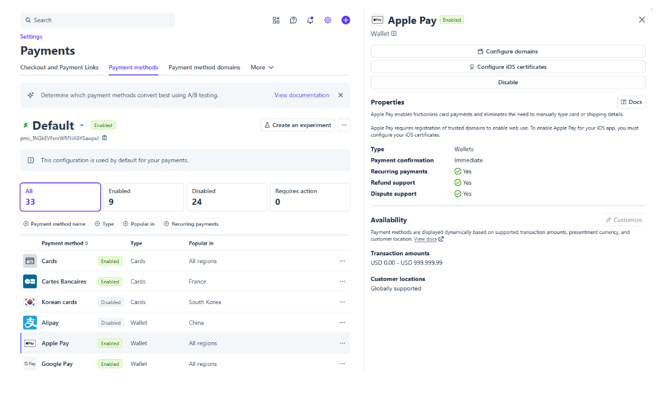
1. Apple Pay in Stripe – Enabled status and the Configure domains button.
2. Add a New Domain
This will open the domain management section:
Payments → Payment method domains
Click + Add a new domain.

2. Payment method domains section – adding a new domain.
3. Enter Your Spream Group Domain
In the Domain field, enter your group’s domain in the following format:
<group>.spream.co
Replace <group> with the name of your group, for example:
company.spream.co
Enter only the domain, without https://.
Save the settings by clicking Save.
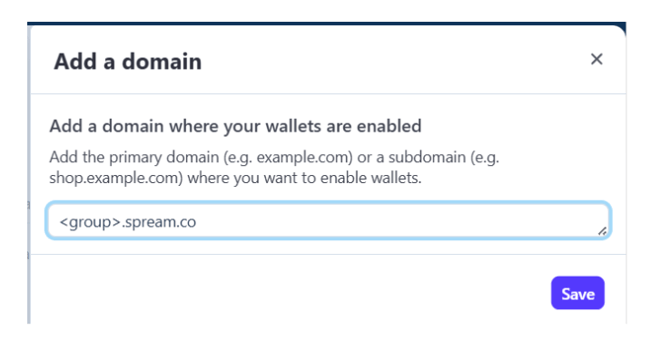
3. Entering the Spream domain without https:// and saving it using the Save button.
Done
Once the domain has been successfully added, your Apple Pay setup in Stripe is complete.
Apple Pay can now appear as a payment option for customers paying through Spream, provided they are using a supported device and have Apple Pay set up.